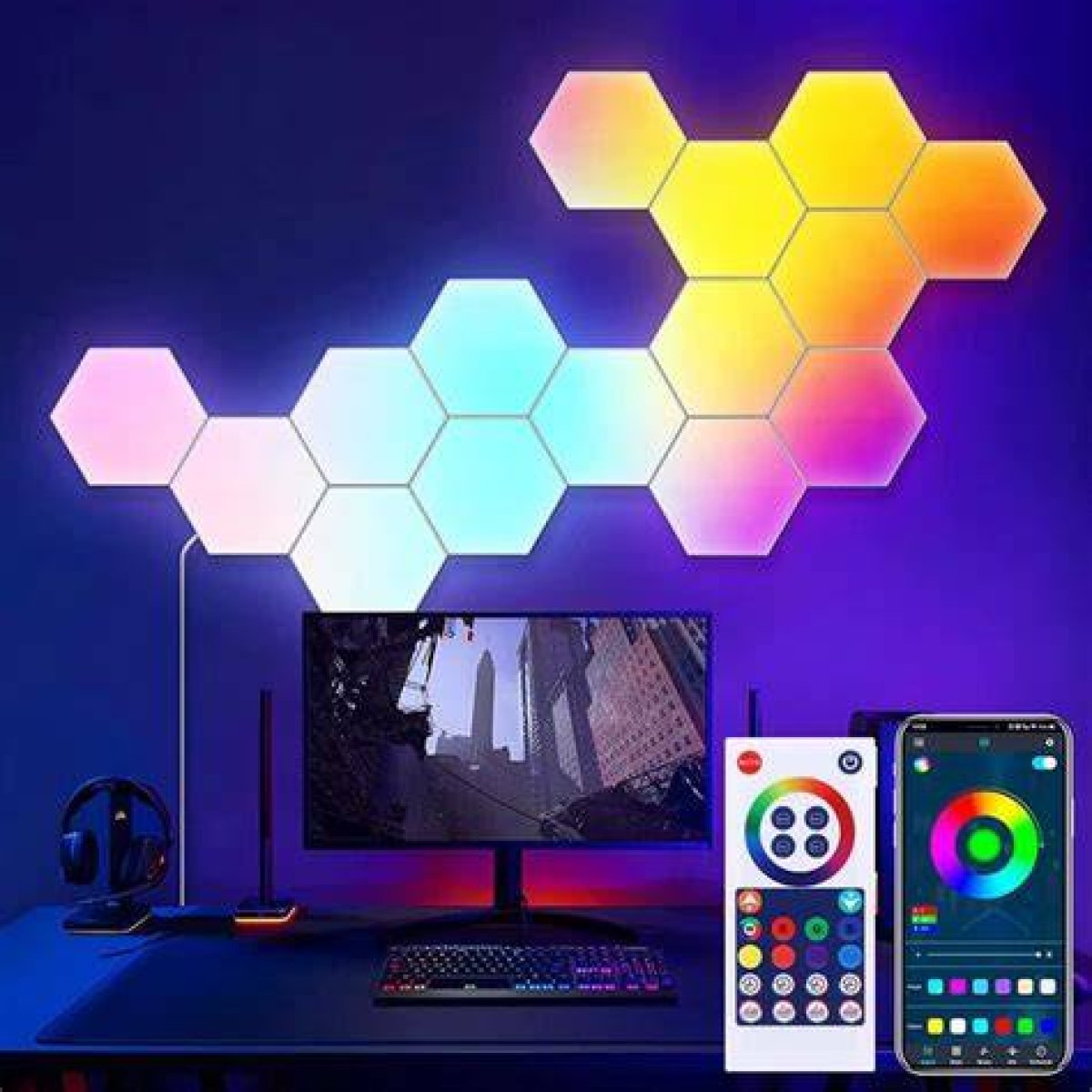
Did you know that you can set your smart lights to flash and change color in time with your favorite music? It's definitely a fun party trick, or an easy way to have a dance-off with your cat. Setting up your lights to work with music isn't as big of a hassle as you might expect, either. Let's dig into the steps needed to sync your smart lights with music.
What kind of lights sync with music
Many smart light brands have added music sync as a feature. It's a safe bet the most popular ones have the feature available, and if they don't, third parties are likely to offer a solution.
Philips Hue, Nanoleaf, and LIFX have all added the functions directly into their apps. The mechanism which they use to visualize music will vary, however. Hue, for example, will connect directly to your Spotify account to sync up your lights with where you are on the playback timeline. Meanwhile, Nanoleaf captures live audio via microphone or plug and processes it in real time.
How to sync Hue with Spotify
Philips Hue uses its native app to sync music with your lights. Its Sync section is equally used in the PC app for projecting on-screen colors to the rest of the room. Fold in audio sync so that both video and audio data are used to determine light activity. Here's how to enable the music sync feature:
Step 1: Open the Hue app.
Step 2: Tap the Sync navigation button.
Step 3: Tap Get Started.
Step 4: Tap Spotify Account.
Step 5: Log in to your Spotify account or confirm it in the following prompt.
Step 6: Tap Create Entertainment Area.
Step 7: Tap Listening to Music.
Step 8: Name the Entertainment area.
Step 9: Start playing music in Spotify.

